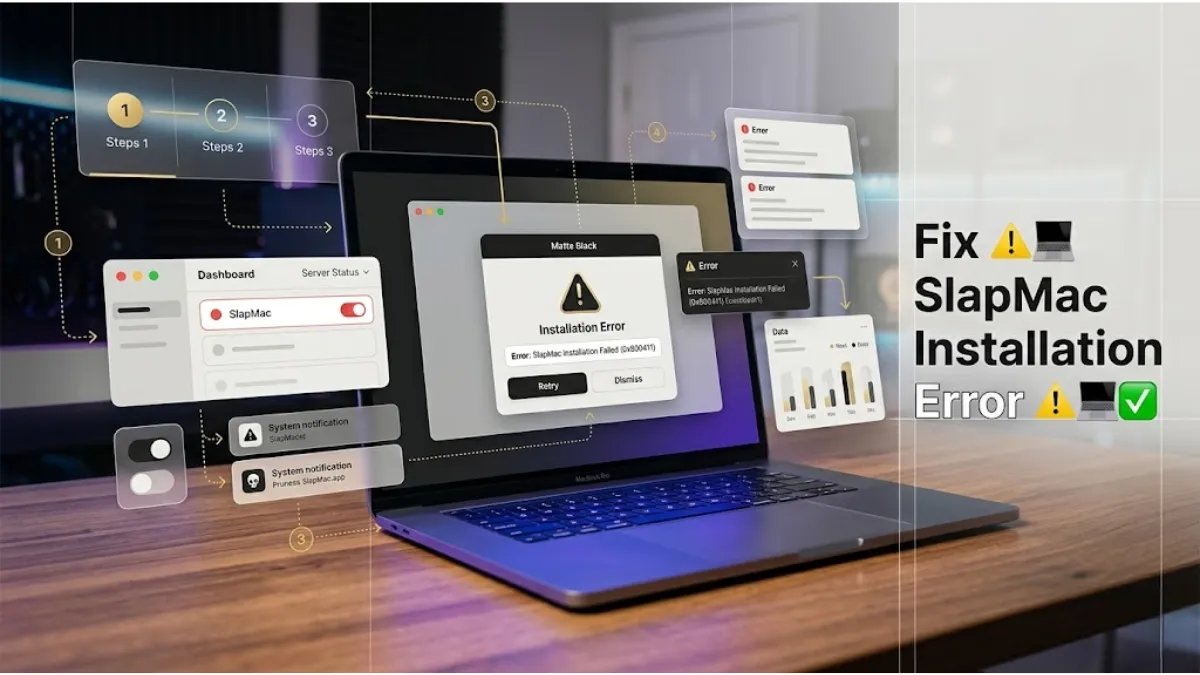
SlapMac is a fun MacBook utility that reacts with sound effects when you tap or slap your laptop. While installing the app is usually simple, some users face installation errors that prevent the app from opening or installing properly.
These problems may occur due to macOS security restrictions, corrupted download files, or compatibility issues with certain Mac versions. Fortunately, most installation errors can be fixed in just a few minutes.
Below is a complete guide to fixing SlapMac installation errors on MacBook.
Common SlapMac Installation Errors
| Error Message | Possible Cause | Solution |
|---|---|---|
| App cannot be opened | Security restrictions | Allow app in Privacy settings |
| Installation failed | Corrupted download | Download again |
| App crashes after install | Outdated version | Update the app |
| Blocked by macOS | Unverified developer | Manually allow the app |
| Installation stuck | System process error | Restart your Mac |
1. Allow the App in macOS Security Settings
macOS sometimes blocks apps downloaded from the internet, especially if the developer is not verified by Apple.
To allow SlapMac manually:
- Open System Settings
- Go to Privacy & Security
- Scroll down to Security
- Click Allow Anyway for SlapMac
After doing this, try launching the app again.
2. Download the File Again
If the installation file was corrupted during download, the app may fail to install.
Delete the old file and download a fresh copy from the official source. A clean installation file often solves the problem immediately.
3. Check macOS Compatibility
Some older versions of SlapMac may not work with newer macOS updates like Sonoma or Ventura.
Make sure your MacBook meets the minimum system requirements and install the latest version of the app.
4. Restart Your MacBook
Temporary system errors can interrupt the installation process. Restarting your Mac clears background processes and refreshes system services.
After restarting, try installing the app again.
5. Install the App Using Finder
Instead of opening the file directly, you can install the app manually using Finder.
Steps:
- Open the downloaded .dmg file
- Drag the SlapMac app into the Applications folder
- Open the app from Applications
This method works for most macOS applications.
6. Disable Gatekeeper Temporarily (Advanced Fix)
macOS Gatekeeper sometimes blocks third-party apps.
You can temporarily allow installation by opening the app with right-click → Open. This bypasses the Gatekeeper warning and allows the app to launch.
After opening once, the app should work normally.
7. Reinstall the App
If the installation still fails, try reinstalling SlapMac.
Steps:
- Delete the app from Applications
- Restart your Mac
- Download the latest version
- Install the app again
Reinstalling often fixes installation errors caused by corrupted files.
Frequently Asked Questions
Why does macOS block SlapMac installation?
macOS may block apps from unidentified developers for security reasons. You can allow the app manually from Privacy settings.
Can SlapMac damage my MacBook?
No, the app itself cannot damage your device. However, avoid hitting the laptop too hard while testing the feature.
Does SlapMac require administrator permissions?
Most versions do not require admin permissions, but macOS security settings may ask for confirmation during installation.
Final Thoughts
SlapMac installation errors are usually caused by macOS security restrictions, corrupted downloads, or compatibility problems. By allowing the app in Privacy settings, downloading a fresh file, or reinstalling the app, most users can fix the issue quickly.
Following these troubleshooting steps should help you install SlapMac successfully and start using its motion-based slap reactions without problems.