SlapMac is a fun macOS utility that reacts when you tap or lightly slap your MacBook. The app detects motion using the laptop’s built-in sensors and then plays sound effects based on the impact. Because the app became viral on social media, many Mac users are now searching for the safest way to install it.
Installing SlapMac is generally simple, but like any third-party application, it’s important to follow safe installation steps. macOS includes built-in security features such as Gatekeeper that warn users when installing apps from outside the App Store. These protections help prevent malware or modified software from being installed on your device.
Before installing SlapMac, make sure your MacBook is updated to the latest version of macOS and that you download the application only from a trusted source. This helps ensure that the software you install is the original version created by the developer.
System Requirements for SlapMac
| Requirement | Details |
|---|---|
| Operating System | macOS 12 or later recommended |
| Device | MacBook with built-in motion sensors |
| Storage | Less than 50 MB required |
| Permissions | Audio output and basic system access |
| Internet | Needed only for downloading the installer |
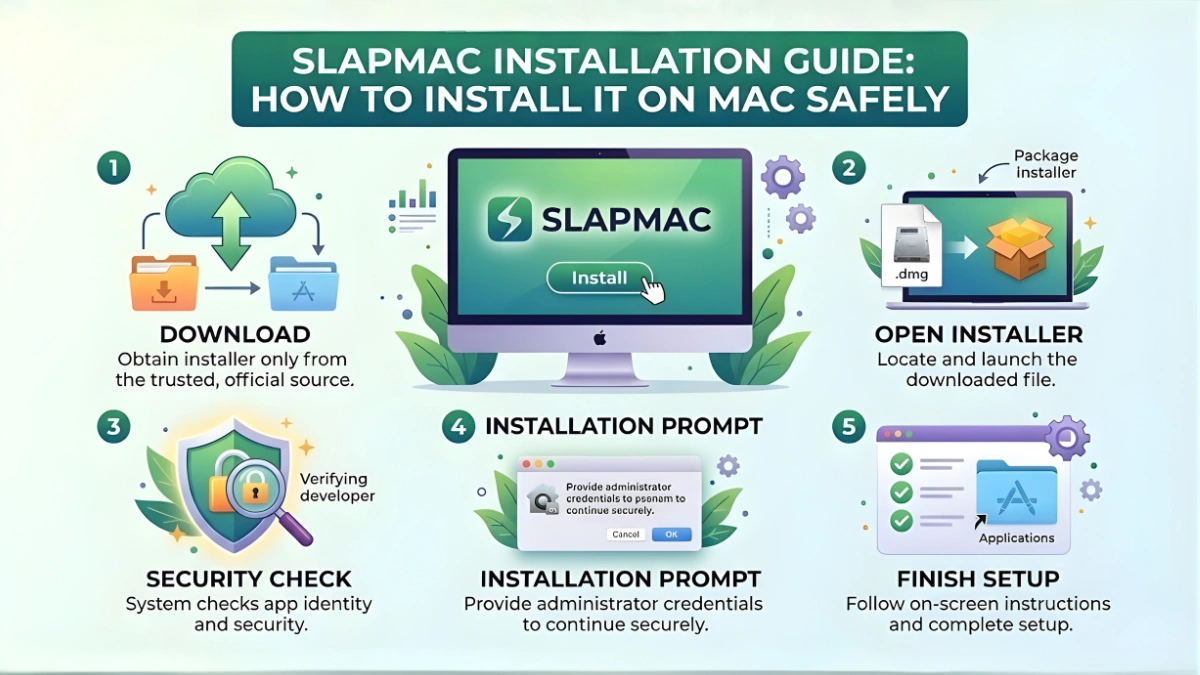
Step-by-Step SlapMac Installation Process
Installing SlapMac on your MacBook usually takes only a few minutes. Follow these steps carefully to install it safely.
1. Download the Installer
First, download the SlapMac installer file from a trusted source. The file is usually provided in .dmg format, which is commonly used for macOS applications.
2. Open the DMG File
Once the download is complete, double-click the DMG file. macOS will open a new window showing the SlapMac application icon.
3. Drag the App to Applications Folder
Drag the SlapMac icon into the Applications folder. This step installs the app on your system and makes it accessible from Launchpad or Finder.
4. Launch the Application
Open the Applications folder and double-click SlapMac. If macOS displays a security warning, select Open to confirm that you want to run the app.
5. Configure Sensitivity Settings
After launching the app, adjust the sensitivity settings so the MacBook responds to light taps rather than hard slaps.
Safety Tips During Installation
When installing any third-party Mac utility, following basic safety practices is important.
- Avoid downloading the installer from unknown websites.
- Check that the application file has not been modified.
- Scan the file with macOS security tools if necessary.
- Do not grant unnecessary permissions during installation.
These precautions help ensure your device remains safe while experimenting with fun applications like SlapMac.
Frequently Asked Questions
Is SlapMac available on the Mac App Store?
In most cases, SlapMac is distributed through direct downloads rather than the official Mac App Store.
Why does macOS show a warning during installation?
macOS Gatekeeper warns users when installing apps from outside the App Store to protect against unknown developers.
Can I uninstall SlapMac easily?
Yes. You can simply drag the SlapMac application from the Applications folder to the Trash to remove it.
Final Thoughts
Installing SlapMac on your MacBook is a straightforward process that usually takes only a few minutes. The app works as a lightweight utility that detects physical taps on your laptop and responds with humorous sound effects.
While the installation process is simple, users should always follow safe practices such as downloading software from trusted sources and paying attention to macOS security warnings. These steps help ensure that your device remains protected while exploring new applications.
Once installed correctly, SlapMac can provide a unique and entertaining experience for Mac users who enjoy experimenting with unusual software.