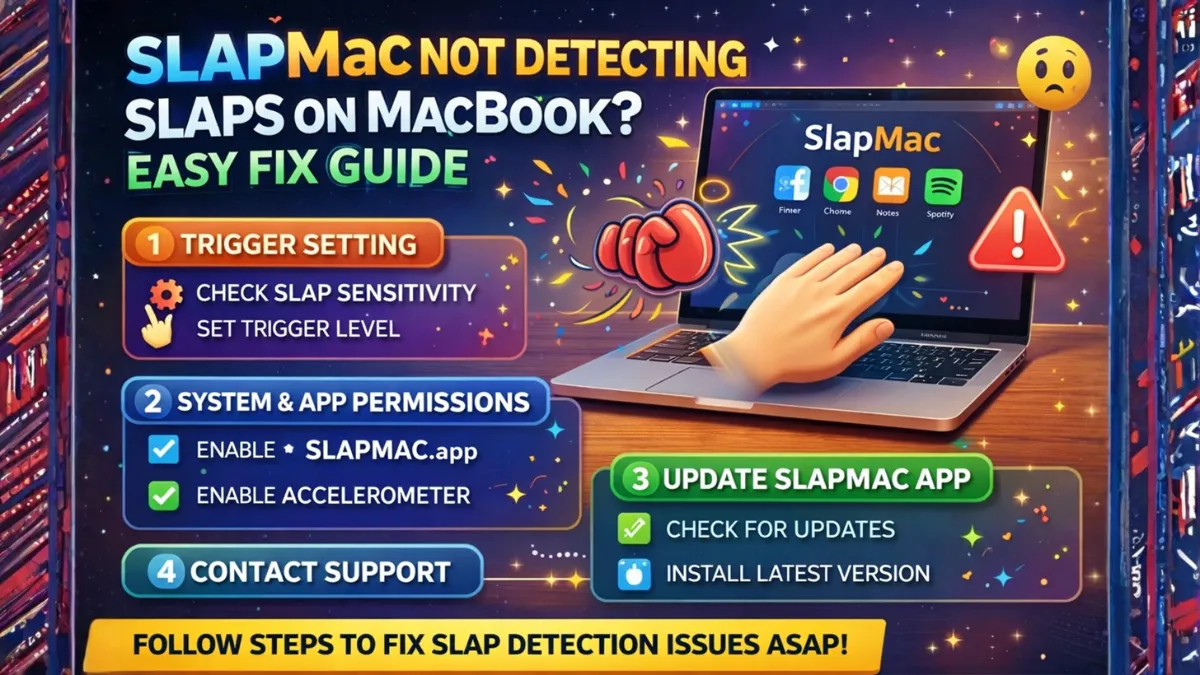
SlapMac is a fun macOS utility that reacts with sound effects whenever you slap or tap your MacBook. The app relies on your laptop’s built-in motion sensors to detect vibrations and impacts. When the sensor detects enough movement, SlapMac immediately triggers a sound reaction.
However, some users report that the app does not detect slaps or taps at all. This issue can happen for several reasons, including low sensitivity settings, incorrect configuration, or compatibility problems with certain MacBook models.
If SlapMac is not detecting your slaps properly, the problem is usually easy to fix. Below is a complete troubleshooting guide to help you solve the issue.
Common Reasons SlapMac Doesn’t Detect Slaps
| Problem | Possible Reason | Solution |
|---|---|---|
| No reaction | Sensitivity too low | Increase sensitivity in settings |
| Delayed reaction | Cooldown time too high | Reduce cooldown value |
| Works sometimes | Weak taps | Tap slightly harder |
| No detection | App not running properly | Restart the application |
| No sensor response | Hardware compatibility issue | Update macOS or the app |
1. Increase Sensitivity Settings
One of the most common reasons SlapMac does not detect slaps is low sensitivity settings. If the threshold is too high, the app may ignore small taps or light impacts.
Open the SlapMac settings menu and increase the sensitivity slider slightly. After adjusting the setting, try tapping the laptop again to see if the reaction works.
2. Check Cooldown Time
Cooldown controls how often SlapMac reacts to taps. If the cooldown value is too high, the app may ignore multiple slaps in a short period.
Lowering the cooldown setting allows the app to respond more frequently.
3. Make Sure the App Is Running
Sometimes the app may accidentally close or stop running in the background. Since SlapMac usually runs as a menu-bar utility, you should check whether its icon appears in the top menu bar.
If the icon is missing, reopen the app or restart it.
4. Restart Your MacBook
Temporary system glitches can occasionally interfere with sensor detection. Restarting your MacBook can reset background processes and restore normal functionality.
After restarting, launch SlapMac again and test the detection feature.
5. Update SlapMac to the Latest Version
If you are using an older version of the app, it may not work correctly with newer versions of macOS. Developers often release updates that fix bugs or improve sensor detection.
Installing the latest update can resolve many detection issues.
6. Avoid Soft Surfaces
Another factor that can affect detection is where your laptop is placed. If your MacBook sits on a soft surface like a bed, couch, or pillow, the impact vibration may not reach the motion sensor properly.
For best results, place the laptop on a hard desk or table before testing SlapMac.
7. Reinstall the Application
If none of the fixes work, reinstalling SlapMac can solve hidden problems caused by corrupted settings or incomplete installation.
Uninstall the app completely, download a fresh copy, and install it again.
Frequently Asked Questions
Why does SlapMac detect some slaps but not others?
This usually happens when the sensitivity setting is too low or the cooldown time is too high.
Does SlapMac work on all MacBooks?
Most modern MacBooks support the motion sensors needed for SlapMac, but compatibility may vary by model.
Can SlapMac damage my MacBook?
The app itself cannot damage hardware, but users should avoid hitting their laptop too hard.
Final Thoughts
If SlapMac is not detecting slaps on your MacBook, the problem is usually caused by simple settings or configuration issues. Adjusting sensitivity, reducing cooldown time, or restarting the application can fix most problems quickly.
Since the app relies on motion sensors, using it on a hard surface and keeping the software updated will help ensure the best detection performance.